6 min read • 1,150 words
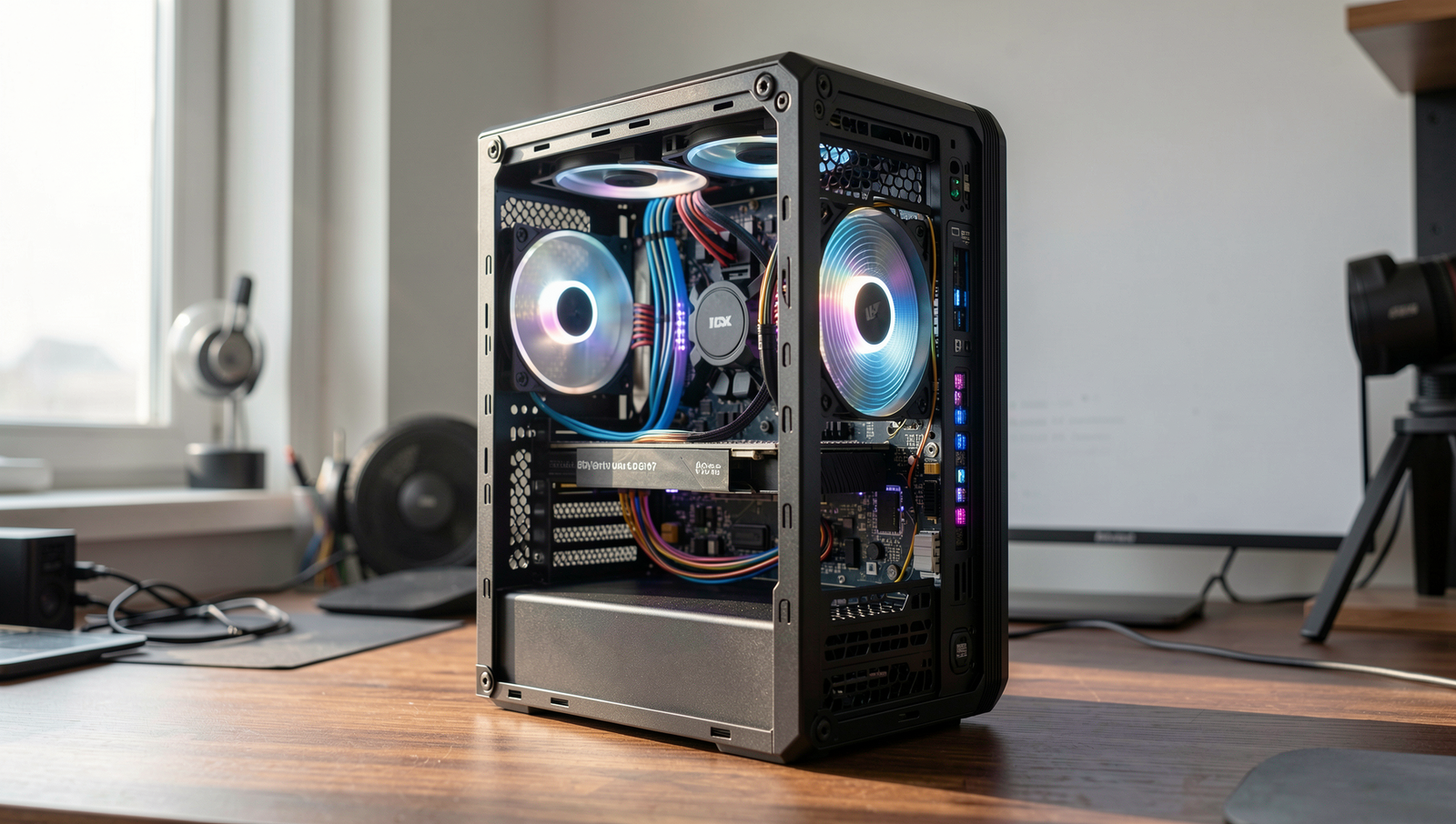
Have you ever wondered why your PC overheats? Overheating is a common issue that can reduce performance and even damage hardware if not addressed promptly. Factors such as dust buildup in fans and vents can restrict airflow, making it difficult for your system to maintain optimal temperatures. Additionally, high-performance components generate more heat, which means they require better cooling solutions to function effectively.
Resource-intensive applications can also contribute to increased temperatures in your PC, putting additional strain on your cooling system. Another often-overlooked factor is the thermal paste between the CPU and cooler; inadequate application can hinder heat dissipation. Fortunately, there are effective strategies to combat overheating, such as improving case ventilation by adding fans, which can significantly lower internal temperatures and enhance your computer’s longevity.
Step-by-Step Tutorial
Step 1: Identify the Causes of Overheating
- Check for Dust Accumulation: Dust can clog fans and vents, restricting airflow. Open your PC case and inspect the fans and heat sinks for dust buildup. Use compressed air to clean these components carefully.
- Evaluate Cooling Systems: Ensure that your cooling system, including CPU and GPU coolers, is functioning properly. If fans are not spinning or are making unusual noises, they may need to be replaced.
- Monitor Ambient Temperature: High ambient temperatures can contribute to overheating. Ensure that your PC is in a well-ventilated area and not exposed to direct sunlight or heat sources.
- Check Thermal Paste: Over time, thermal paste between the CPU/GPU and their coolers can degrade. If temperatures are high, consider reapplying thermal paste.
- Use Temperature Monitoring Tools: Utilize software like
HWMonitorto keep an eye on your system’s temperatures. This will help you identify if certain components are running hotter than normal.
By following these steps, you should have a clear list of potential causes for your PC’s overheating issue. Regular maintenance is key to preventing overheating.
Tips: Regularly check and clean your PC’s interior to prevent dust buildup.
Warnings: Avoid opening the PC case while it’s powered on to prevent electric shock or damage.
Step 2: Clean Your PC
- Power down your PC and unplug it from the electrical outlet to ensure safety.
- Remove the side panel of your PC case. This usually involves unscrewing a few screws or pressing a latch.
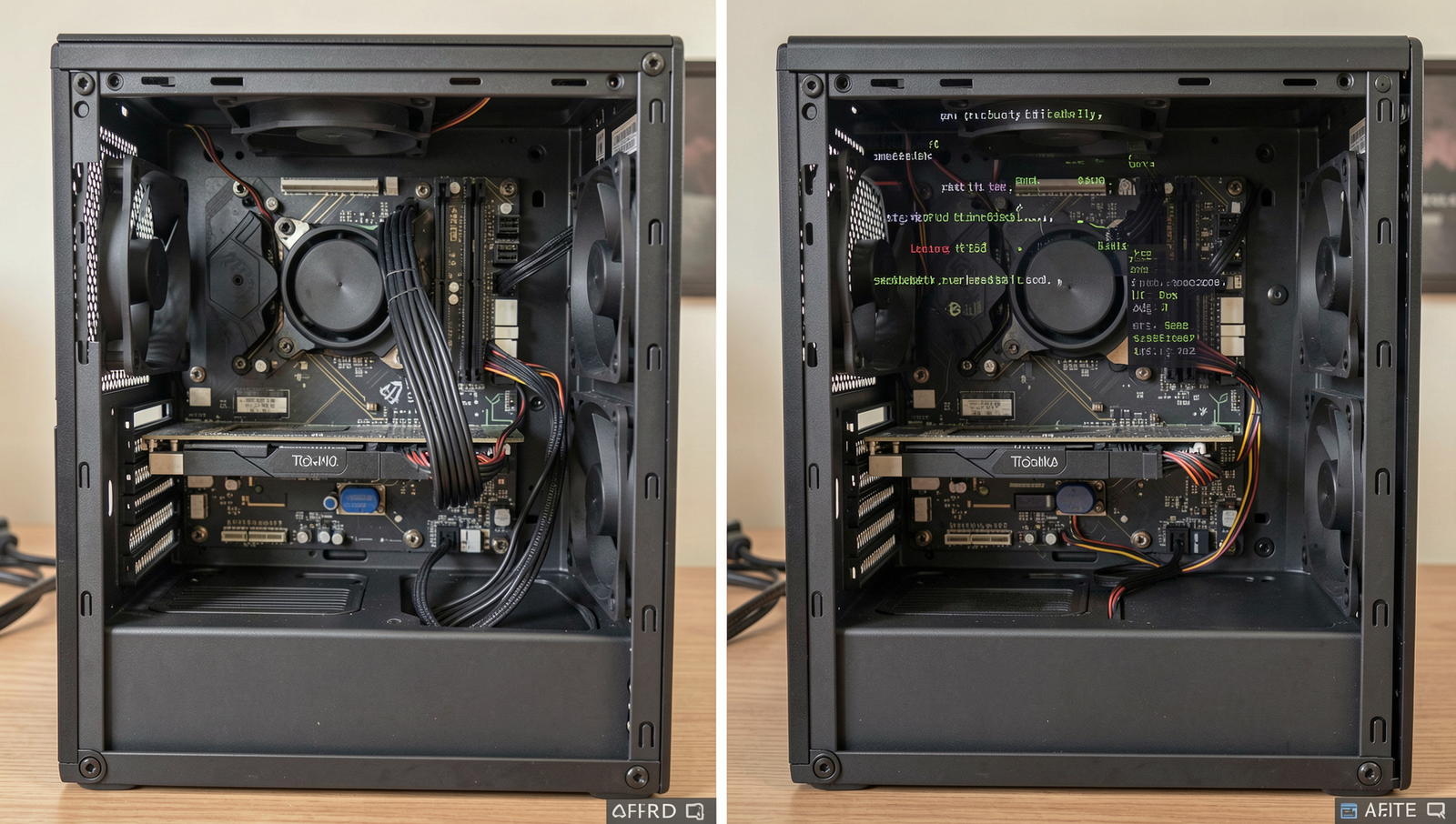
- Use a can of compressed air to blow out dust from the fans, heat sinks, and vents. Hold the can upright and use short bursts of air.
- Pay special attention to the CPU cooler and power supply, as these areas often accumulate significant dust.
- After cleaning, reattach the side panel securely and plug your PC back in.
Your PC should have improved airflow and reduced dust accumulation, leading to better performance and lower temperatures. To maintain optimal airflow, perform this cleaning every few months. Additionally, consider using dust filters on your case to reduce dust entry.
Warnings: Ensure the PC is completely powered off and unplugged before cleaning. Avoid using a vacuum cleaner, as it can generate static electricity that may damage components.
Step 3: Upgrade Cooling Solutions
- Assess Your Current Cooling System: Begin by evaluating your existing cooling setup. Check the number and size of your case fans and determine if they are functioning properly.
- Choose the Right Cooling Solution: Research various cooling options such as air cooling and liquid cooling. Consider factors like noise levels, cooling efficiency, and compatibility with your PC case.
- Purchase Additional Fans or a Liquid Cooling System: Based on your research, buy the necessary components. If opting for air cooling, select high-performance fans that fit your case. For liquid cooling, choose a kit that matches your CPU socket type.
- Install the New Cooling Solutions: Follow the manufacturer’s instructions for installation. For fans, mount them in the appropriate locations to optimize airflow. For liquid cooling, ensure proper placement of the radiator and pump.
- Monitor Temperatures: After installation, use software tools to monitor your CPU and GPU temperatures. Ensure they remain within safe operating limits.
By upgrading your cooling solutions, you should experience enhanced cooling capabilities, leading to lower operating temperatures and improved performance.
Tips: Research cooling options that best fit your usage needs, such as air vs. liquid cooling. Monitor temperatures after installation.
Warnings: Ensure compatibility of new cooling solutions with your existing hardware. Follow all installation instructions carefully to avoid damage.
Step 4: Optimize System Performance
- Close Unnecessary Applications: Open the Task Manager by pressing
Ctrl + Shift + Esc. Review the list of running applications and identify resource-heavy programs. Right-click on these applications and selectEnd Taskto close them. - Adjust Power Settings: Go to
Control Panel>Power Options. Select thePower Saverplan to reduce power consumption and heat generation. - Update Drivers: Regularly check for updates for your graphics and system drivers. You can do this by visiting the manufacturer’s website or using
Device Managerto search for updates. - Monitor System Performance: Use performance monitoring tools to keep an eye on CPU and GPU usage. This can help you identify any spikes that may lead to overheating.
- Be Cautious with Overclocking: If you choose to adjust clock speeds or voltages, do so carefully. Improper settings can lead to instability and overheating. Always monitor temperatures closely after making changes.
By following these steps, your PC should operate more efficiently, significantly reducing the likelihood of overheating.
Conclusion
Understanding why does your PC overheat is crucial for maintaining its performance and longevity. Overheating can result from various factors, including dust accumulation, inadequate cooling systems, and high ambient temperatures. By identifying these issues early, you can take proactive measures to prevent overheating and ensure your computer runs smoothly.
To stop your PC from overheating, regular maintenance is essential. This includes cleaning dust from fans and vents, ensuring proper airflow, and considering upgrades to your cooling system if necessary. By implementing these strategies, you can protect your hardware and enhance your overall computing experience.
Frequently Asked Questions
Why does my PC overheat?
Your PC can overheat due to several factors, including inadequate cooling, dust buildup in the vents and fans, high ambient temperatures, or heavy resource usage from demanding applications. Poor airflow and malfunctioning hardware components can also contribute to overheating.
What are the signs of an overheating PC?
Common signs of an overheating PC include unexpected shutdowns, frequent system crashes, unusually loud fan noises, and performance slowdowns. You may also notice that the exterior of the computer feels excessively hot to the touch.
How can I prevent my PC from overheating?
To prevent overheating, ensure that your PC has proper ventilation and airflow. Regularly clean dust from fans and vents, use a cooling pad if you have a laptop, and monitor your system’s temperature using software tools. Additionally, avoid blocking airflow and consider upgrading your cooling system if necessary.