5 min read • 1,105 words
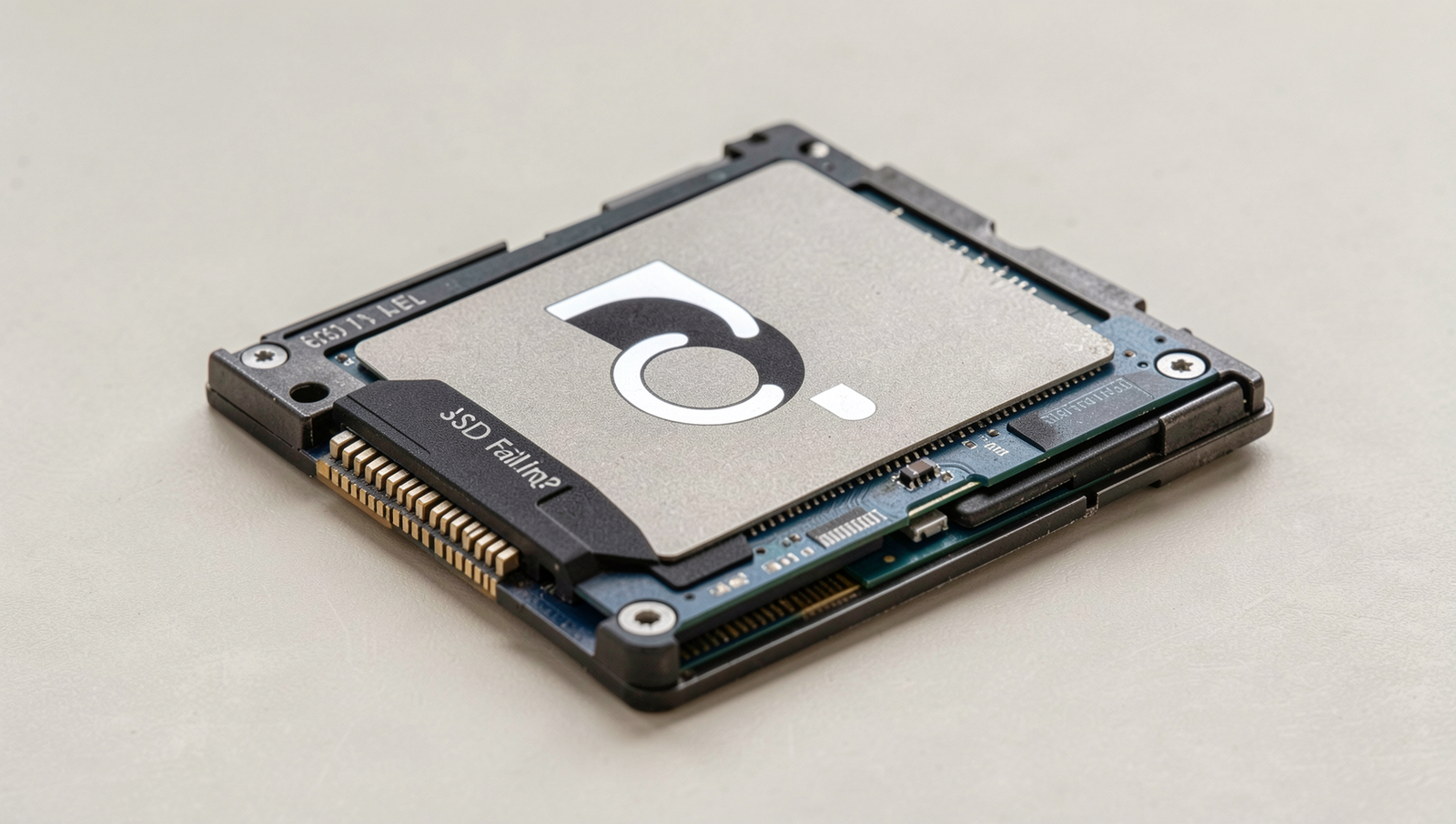
In today’s digital age, solid-state drives (SSDs) have become the backbone of our computing experience, offering speed and reliability. However, even the most advanced technology can face issues, and an SSD failing can lead to significant data loss and system instability. Recognizing the warning signs early on is crucial to preventing catastrophic failures and ensuring the longevity of your data storage.
From performance degradation to unexpected system crashes, there are several indicators that your SSD may be on the verge of failure. Unusual noises, increased read/write errors, and a sudden drop in available storage space are all red flags that should not be ignored. In this article, we will explore these warning signs in detail, helping you to identify potential issues before they escalate into serious problems.
Understanding SSD Failure
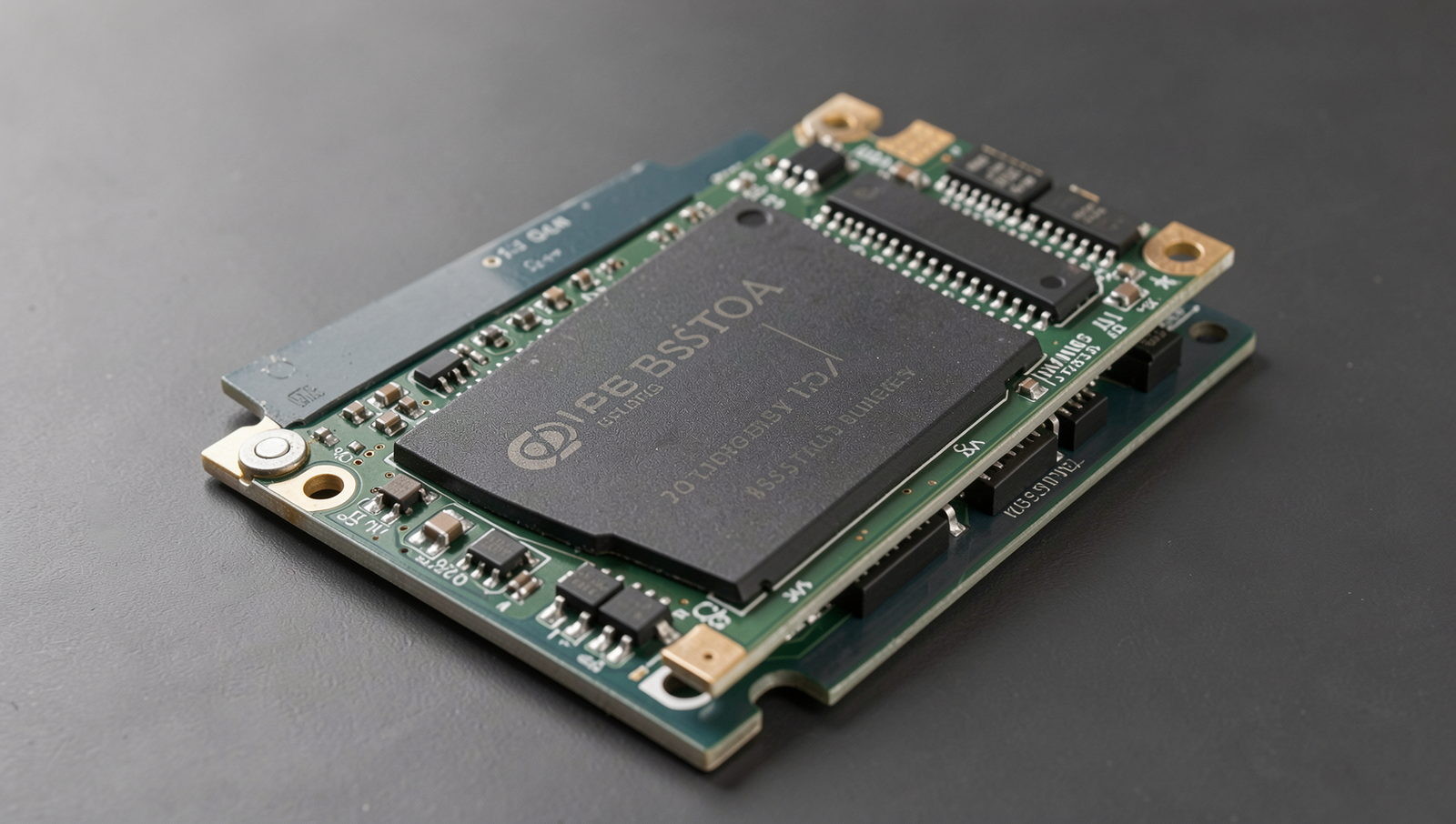
Solid State Drives (SSDs) have revolutionized data storage with their speed and reliability compared to traditional Hard Disk Drives (HDDs). However, like any technology, SSDs are not immune to failure. Common failure modes include wear-out mechanisms, such as write amplification and limited program/erase cycles, which can lead to data loss over time.
It is crucial to recognize that the signs of failure in SSDs differ from those in HDDs. While HDDs may exhibit physical signs like unusual noises or slow performance, SSDs often fail silently. Common indicators of SSD issues include:
- Frequent system crashes or freezes
- Corrupted files or data loss
- Slow read/write speeds
- Unresponsive applications
Early detection of these issues is vital. Ignoring warning signs can lead to complete data loss, making regular backups essential. Additionally, many users believe that SSDs are invulnerable due to their lack of moving parts. This myth can lead to complacency regarding maintenance and monitoring.
Understanding the technology and recognizing the signs of SSD failing can help users take proactive measures to protect their data and extend the lifespan of their drives.
Warning Signs of a Failing SSD
As SSDs become an integral part of our computing experience, recognizing the signs of a failing SSD is crucial to prevent data loss. Here are some warning signs you should not ignore:
- Frequent system crashes or blue screens: If your computer frequently crashes or displays blue screens, it may indicate that the SSD is failing. This can disrupt your work and lead to potential data loss.
- Unexplained data corruption or file loss: If you notice files becoming corrupted or disappearing without explanation, this is a strong indicator that your SSD may be on the verge of failure.
- Slow read/write speeds compared to normal: If your SSD is taking significantly longer to read or write data, it may be struggling. You can check the speed using the following command:
hdparm -Tt /dev/sdXReplace /dev/sdX with your SSD’s identifier. If the results are much lower than expected, consider backing up your data.
- Inability to boot or recognize the SSD: If your system fails to boot or the BIOS does not recognize the SSD, it could be a sign of imminent failure. This situation can leave you unable to access important files.
Being aware of these warning signs can help you take proactive measures to protect your data and ensure your system remains functional.
Steps to Take When You Suspect SSD Failure
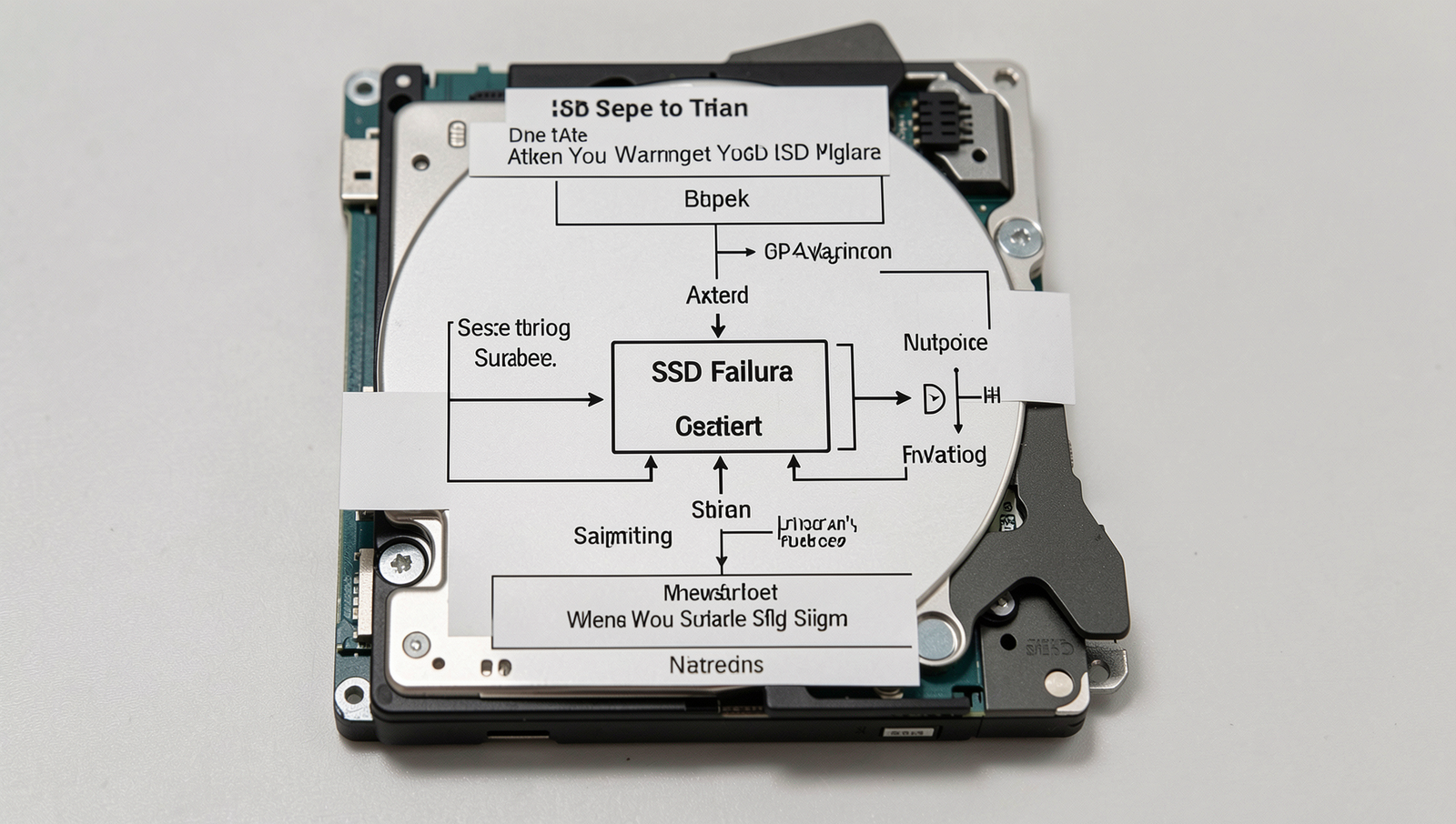
If you suspect that your SSD is failing, it is crucial to act quickly to minimize data loss and potential damage. Here are the steps you should take immediately:
- Backup important data immediately: The first step is to secure your data. Use an external hard drive or cloud storage to back up any critical files. For example, you can use the following command to copy files to an external drive:
cp -r /path/to/important/files /path/to/external/drive- Run diagnostic tools to check SSD health: Utilize built-in or third-party diagnostic tools to assess the health of your SSD. Tools like CrystalDiskInfo or the built-in Windows utility can provide insights into the drive’s status. You can run a command like this on Linux:
sudo smartctl -a /dev/sda- Consider firmware updates for potential fixes: Check the manufacturer’s website for any firmware updates that might resolve issues with your SSD. Keeping the firmware up to date can improve performance and reliability.
- Evaluate options for data recovery or SSD replacement: If your SSD is confirmed to be failing, consider professional data recovery services or look into replacing the drive altogether. Research your options and choose a reliable service or product.
Taking these steps can help you manage the situation effectively and protect your valuable data from being lost permanently.
Conclusion
Recognizing the signs of an SSD failing is crucial for maintaining the integrity of your data and ensuring the longevity of your system. By being vigilant and attentive to symptoms such as unusual noises, frequent crashes, or slow performance, you can take proactive measures to back up your data and replace the drive before it’s too late.
Don’t underestimate the importance of monitoring your SSD’s health. Regularly check for warning signs and utilize diagnostic tools to assess its performance. By staying informed and acting promptly, you can prevent data loss and keep your system running smoothly, ensuring that an SSD failing doesn’t lead to significant disruptions in your work or personal life.
Frequently Asked Questions
What are the common signs of a failing SSD?
Common signs of a failing SSD include frequent system crashes, slow performance, data corruption, and unusual error messages. You may also notice that files take longer to open or save, and the SSD may become unresponsive at times.
How can I check the health of my SSD?
You can check the health of your SSD using various software tools that provide detailed information about its status. Tools like CrystalDiskInfo, Samsung Magician, or the built-in Windows utility can help you monitor the drive’s health and performance metrics.
Is it possible to recover data from a failing SSD?
Yes, it is possible to recover data from a failing SSD, but the success of recovery depends on the extent of the damage. If the SSD is still partially functional, data recovery software may help retrieve lost files. However, if the drive has severe physical damage, professional data recovery services may be required.
What should I do if I suspect my SSD is failing?
If you suspect your SSD is failing, it is crucial to back up your data immediately to prevent loss. After backing up, consider running diagnostic tests to assess the drive’s health. If the drive shows significant issues, it may be time to replace it.