
5 min read • 1,122 words
Have you ever wondered what happens when you clear your browser cache? This simple yet effective action can significantly impact your browsing experience. By removing stored files, you can free up valuable storage space on your device and enhance your browser’s performance. However, clearing your cache is not without its consequences, such as potential loading issues and being logged out of your favorite websites. Understanding the implications of this process can help you make informed decisions about your online activities.
When you clear your browser cache, you essentially reset the stored data that helps your browser load websites more quickly. While this can resolve loading issues by forcing the browser to fetch the latest version of a webpage, it may also lead to slower loading times initially, as all data needs to be re-downloaded. In this article, we will explore what happens when you clear your browser cache, the benefits it offers, and the potential drawbacks you should be aware of.
Understanding Browser Cache
Browser cache is a temporary storage location on your computer where web browsers save copies of web pages, images, and other media files. The primary purpose of the cache is to enhance the speed and efficiency of web browsing. When you revisit a website, your browser can load the cached data instead of downloading it again, significantly reducing loading times.
By storing frequently accessed data, the cache allows for quicker retrieval, which improves the overall user experience. For example, if you visit a news website daily, the browser will cache the images and layout, enabling the page to load almost instantly on subsequent visits.
The types of data typically stored in the cache include:
- HTML files
- Images (JPEG, PNG, GIF)
- JavaScript and CSS files
It’s essential to differentiate between cache, cookies, and browsing history. While cache stores static files to speed up loading times, cookies are small pieces of data that websites use to remember user preferences and login information. Browsing history, on the other hand, is a record of all the web pages you have visited. Understanding these differences is crucial for effective web management.
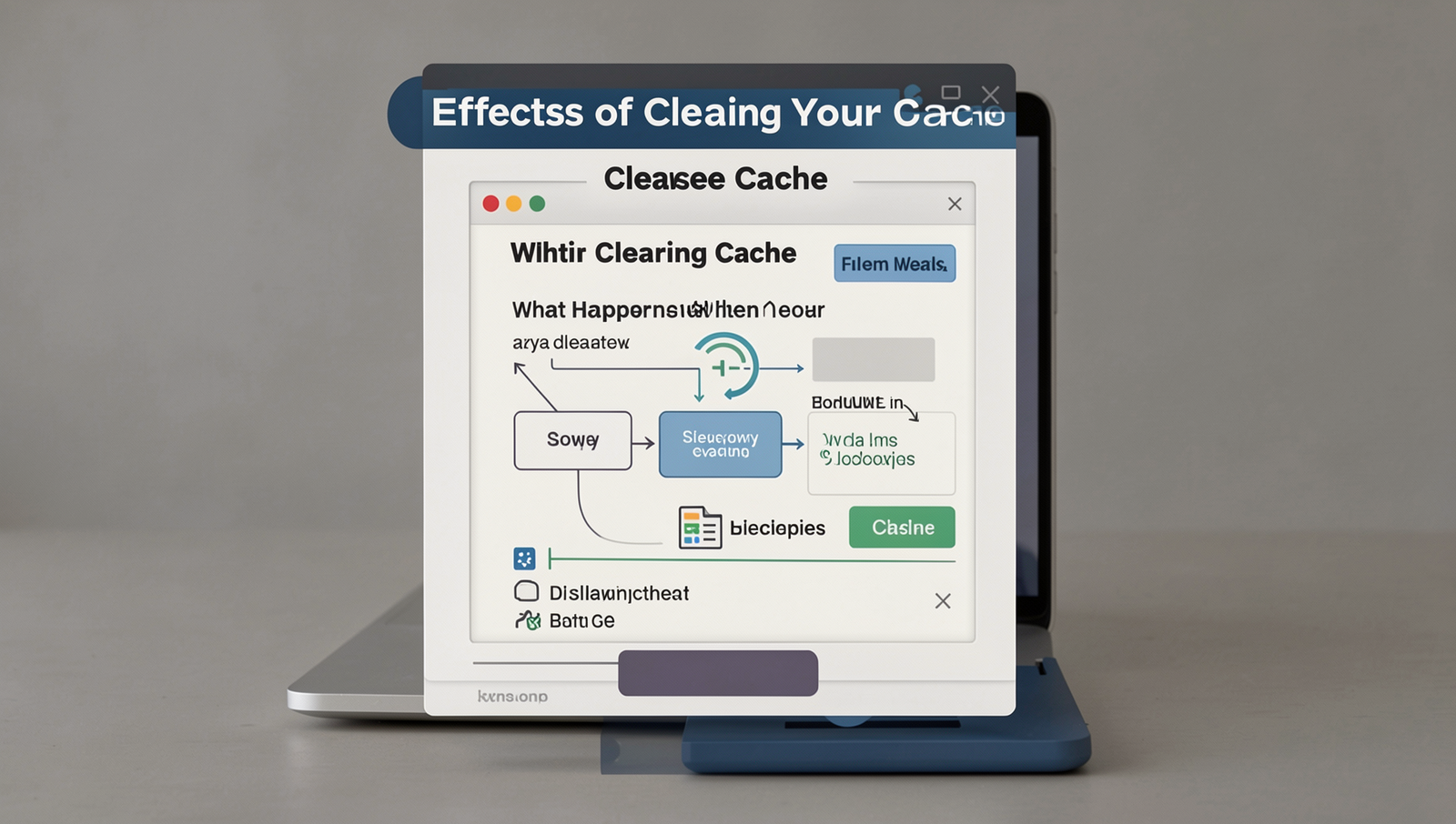
Effects of Clearing Your Cache
When you clear your browser cache, you may notice several immediate effects on your browsing experience. One of the most significant impacts is on website loading times. Initially, you might experience slower loading times as your browser rebuilds the cache with fresh content. This is because the browser has to download all the necessary files again, rather than pulling them from the local cache.
Additionally, clearing your cache can lead to the potential loss of saved preferences and login states. For example, if you frequently visit a site that remembers your login information, you may find yourself needing to log in again after clearing the cache. This can be inconvenient, especially for sites that require complex passwords.
- Immediate impact on website loading times
- Potential loss of saved preferences and login states
- Resolution of display issues or outdated content
- Temporary increase in data usage after clearing
On the positive side, clearing your cache can resolve display issues or outdated content. If a website isn’t displaying correctly or is showing old information, clearing the cache can force the browser to fetch the latest version of the site. However, be aware that this may lead to a temporary increase in data usage as all files are downloaded anew.
How to Clear Your Browser Cache
Clearing your browser cache can help resolve various issues, but it’s essential to do it correctly to avoid losing important data. Here’s a step-by-step guide for popular browsers:
- Google Chrome:
- Open Chrome and click on the three dots in the upper right corner.
- Select “More tools” and then “Clear browsing data.”
- Choose the time range and check “Cached images and files.”
- Click “Clear data.”
- Mozilla Firefox:
- Open Firefox and click on the three horizontal lines in the upper right corner.
- Select “Options” and then “Privacy & Security.”
- Scroll down to “Cookies and Site Data” and click “Clear Data.”
- Check “Cached Web Content” and click “Clear.”
- Safari:
- Open Safari and click on “Safari” in the menu bar.
- Select “Preferences” and go to the “Advanced” tab.
- Enable “Show Develop menu in menu bar.”
- Click on “Develop” in the menu bar and select “Empty Caches.”
To clear your cache without losing important data, consider the following tips:
- Back up bookmarks and passwords before clearing.
- Use the option to clear cache only for specific sites if available.
It’s generally recommended to clear your cache every few weeks or whenever you notice performance issues. Additionally, you can manage cache effectively by:
- Using browser extensions that automatically clear cache at set intervals.
- Regularly checking for updates to your browser, as they often improve cache management.
By following these steps, you can ensure that clearing your cache is a smooth process while minimizing the risk of losing important data.
Conclusion
In summary, understanding What Happens When You Clear Your Browser Cache is essential for maintaining optimal web performance and security. Clearing your cache can resolve issues related to outdated content, improve loading times, and enhance your browsing experience. It allows your browser to fetch the most recent versions of web pages, ensuring that you are viewing the latest information available.
However, it’s important to remember that clearing your cache may also result in the loss of saved login information and preferences for certain websites. Therefore, while it is a useful troubleshooting step, users should consider the implications and balance it with their browsing habits. Regularly managing your cache can lead to a smoother and more efficient online experience.
Frequently Asked Questions
What is browser cache?
The browser cache is a temporary storage location on your computer where web pages, images, and other media files are stored. This allows your browser to load websites faster by retrieving these files from the cache instead of downloading them again from the internet.
What happens when I clear my browser cache?
When you clear your browser cache, all the stored files in the cache are deleted. This means that the next time you visit a website, your browser will have to download all the files again, which may result in slower loading times initially. However, clearing the cache can also resolve issues with loading outdated or corrupted files.
Will clearing my cache delete my passwords?
No, clearing your browser cache will not delete your saved passwords. Passwords are typically stored separately in your browser’s password manager. However, if you choose to clear your cookies along with the cache, you may be logged out of websites and need to re-enter your passwords.