5 min read • 1,054 words
In today’s fast-paced world, a reliable phone battery is essential for staying connected and productive. However, many users are unaware of the powerful phone battery settings that can dramatically extend their device’s battery life. By making a few simple adjustments, such as reducing screen brightness and enabling battery saver mode, you can ensure that your phone lasts throughout the day without the constant worry of running out of power.
Beyond just screen brightness and battery saver mode, there are several other phone battery settings that can help you conserve energy. Turning off location services when they’re not needed, disabling unused apps from running in the background, and switching to airplane mode in low-signal areas are all effective strategies to minimize battery drain. In this article, we will explore these settings in detail and show you how to maximize your phone’s battery life.
Understanding Battery Life
Battery life refers to the duration a smartphone can operate on a single charge before needing to be recharged. It is a crucial aspect of mobile devices, as it directly impacts user experience and convenience. A longer battery life means less frequent charging, allowing users to stay connected and productive throughout the day.
Several common factors can significantly affect battery life:
- Screen brightness and display settings
- Background app activity
- Location services and GPS usage
- Network connectivity (Wi-Fi, Bluetooth, cellular)
Smartphone battery technology has evolved over the years, with lithium-ion batteries being the most prevalent. These batteries offer a good balance of energy density, longevity, and recharge cycles. However, as apps and features become more demanding, users may notice a decline in battery performance.
Signs of poor battery performance include:
- Rapid battery drain even with minimal usage
- Device overheating during charging
- Inability to hold a charge for long periods
By adjusting phone battery settings, users can enhance their device’s longevity and overall performance.
Key Phone Settings to Optimize Battery Life
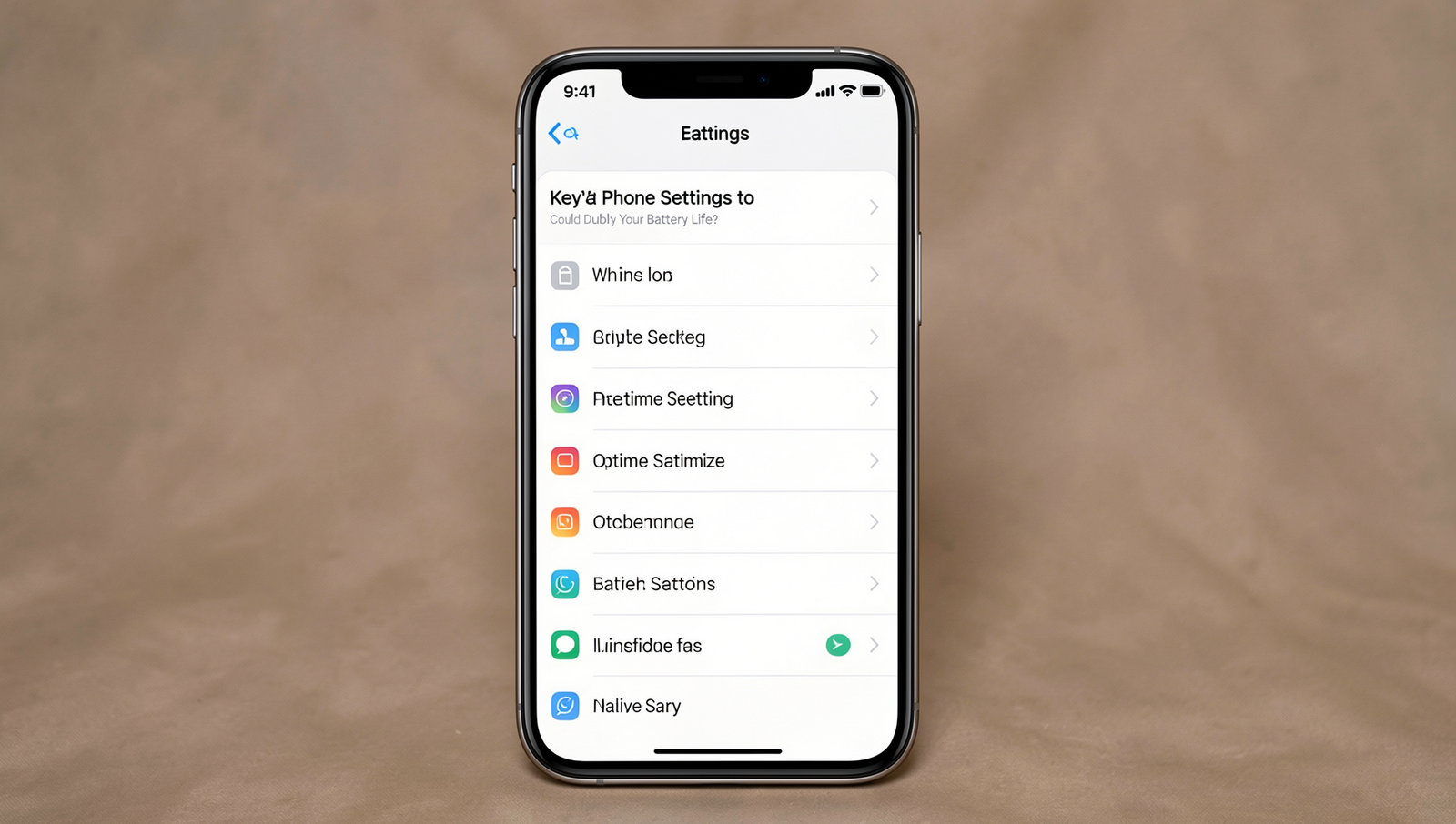
To extend your phone’s battery life significantly, adjusting certain phone battery settings can make a noticeable difference. Here are some key adjustments you can implement:
- Adjusting Screen Brightness and Timeout Settings: Lowering your screen brightness can save a lot of battery. You can also reduce the screen timeout duration to ensure your display turns off quickly when not in use. For example, set your brightness to 50% and timeout to 30 seconds.
- Managing Location Services and GPS Usage: Location services can drain your battery quickly. Disable GPS when not needed or switch to “Battery Saving” mode. You can adjust these settings by going to
Settings > Location > Modeand selecting the appropriate option. - Controlling Background App Activity: Many apps run in the background, consuming battery life. You can restrict background activity by navigating to
Settings > Apps > [App Name] > Batteryand selecting “Restrict Background Activity.” - Utilizing Battery Saver Modes Effectively: Most smartphones come with a battery saver mode that limits background processes and reduces performance to extend battery life. Activate this mode by going to
Settings > Battery > Battery Saver.
By implementing these practical examples of phone battery settings, you can significantly enhance your device’s battery longevity.
Implementing Changes for Maximum Efficiency
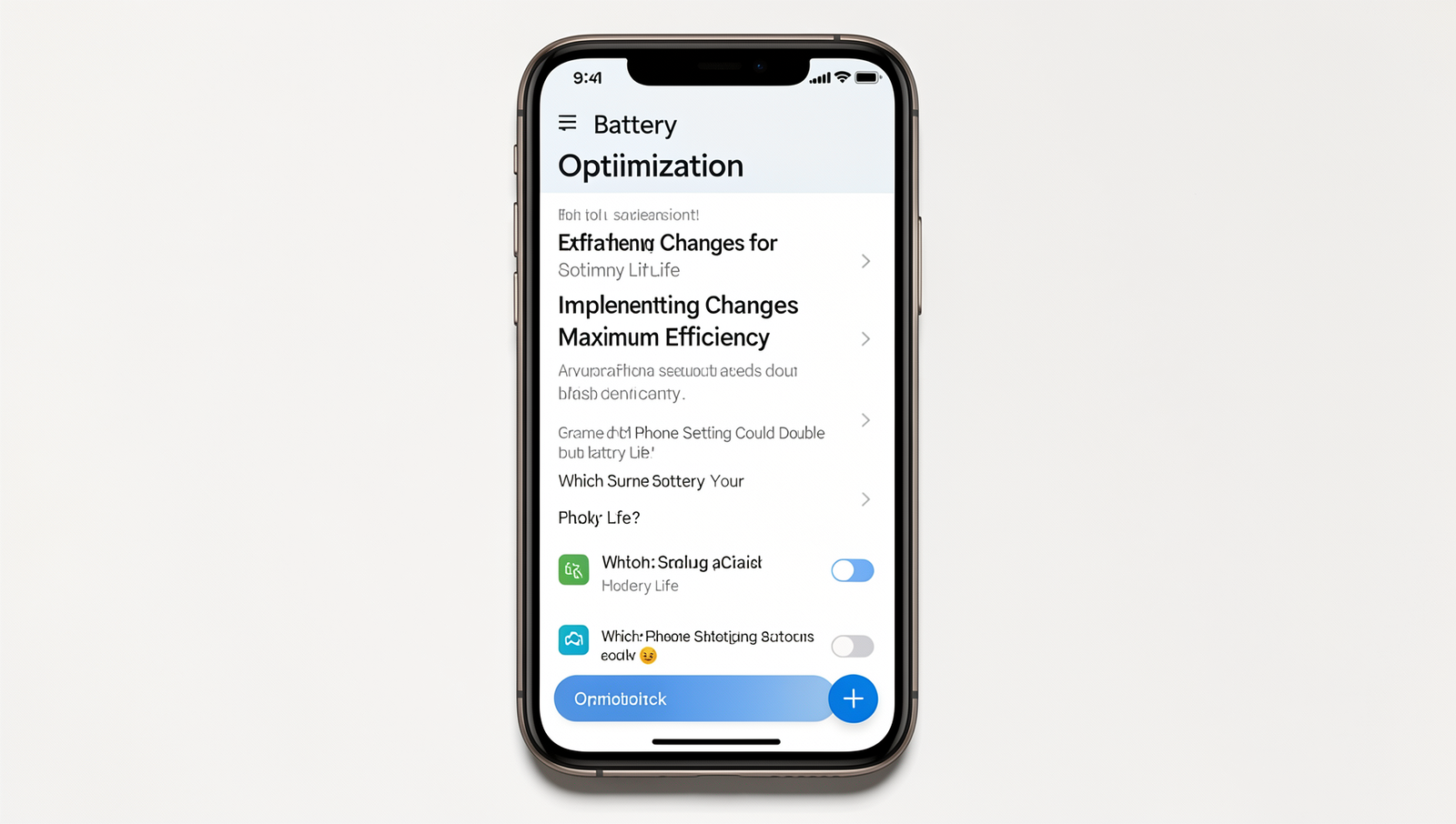
To effectively double your phone’s battery life, it’s essential to adjust your phone battery settings methodically. Here’s a step-by-step guide to help you make these changes:
- Reduce Screen Brightness: Go to
Settings>Display>Brightnessand lower it to a comfortable level. - Limit Background App Activity: Navigate to
Settings>Appsand restrict apps from running in the background. - Enable Battery Saver Mode: Access
Settings>Batteryand turn onBattery Saver. - Turn Off Location Services: Go to
Settings>Locationand disable it when not in use.
After making these changes, it’s crucial to monitor your battery performance. Here are some tips:
- Check battery usage statistics in
Settings>Batteryto identify any apps draining power. - Observe how long your battery lasts after implementing changes to gauge effectiveness.
For enhanced battery management, consider using recommended apps like:
- Greenify: Helps hibernate background apps.
- AccuBattery: Monitors battery health and charging habits.
While optimizing your phone battery settings, avoid these common mistakes:
- Neglecting to update your apps, which can lead to increased battery drain.
- Overusing live wallpapers and widgets that consume more power.
By following these guidelines, you can significantly enhance your phone’s battery life and overall performance.
Conclusion
In today’s fast-paced world, optimizing your phone’s battery life is essential for staying connected and productive. By adjusting specific phone battery settings, such as reducing screen brightness, limiting background app activity, and enabling battery saver modes, you can significantly extend the life of your device between charges. These simple adjustments can make a noticeable difference, allowing you to use your phone longer without the constant worry of running out of power.
Ultimately, understanding and utilizing the right phone battery settings can lead to a more efficient and enjoyable user experience. Whether you’re a heavy user or someone who relies on their phone for essential tasks, taking the time to tweak these settings can help you maximize your battery performance and ensure that your device is always ready when you need it.
Frequently Asked Questions
What phone setting can help extend battery life?
One of the most effective settings to extend battery life is enabling Battery Saver mode. This feature limits background activity, reduces performance, and adjusts settings to conserve power.
How does reducing screen brightness affect battery life?
Reducing screen brightness can significantly improve battery life, as the display is one of the largest power consumers on a smartphone. Lowering brightness decreases the energy required to power the screen, thus extending usage time.
Can turning off location services improve battery longevity?
Yes, turning off location services can enhance battery longevity. When location services are active, your phone frequently uses GPS and other sensors, which can drain the battery quickly. Disabling this feature when not needed can help conserve power.
Are there other settings that can help save battery life?
Yes, other settings include disabling background app refresh, turning off push notifications, and limiting connectivity features such as Bluetooth and Wi-Fi when not in use. These adjustments can collectively contribute to better battery performance.